
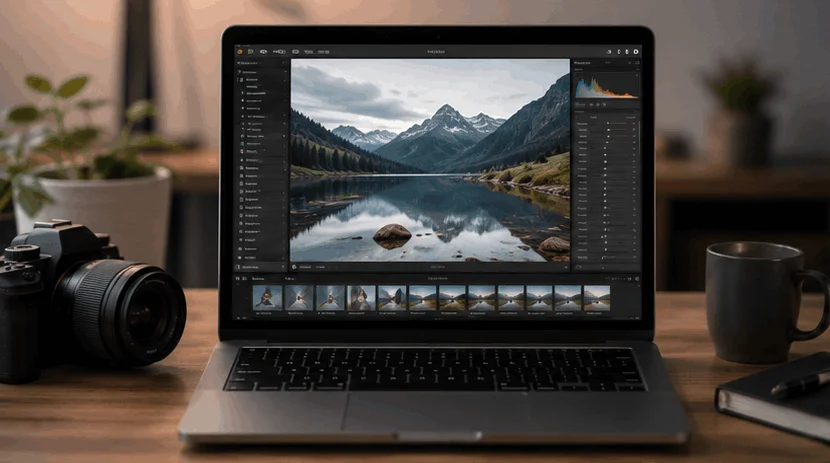
Lightroom Presets Tutorial: Lightroom presets are saved editing settings that apply changes like exposure, colors, contrast, and effects to photos with one click.
They help you edit faster and create a consistent style. However, presets are not a complete replacement for manual editing.
This Lightroom presets tutorial explains how presets work, how to install and use them, and how to get better results. You will also learn about preset file types, common mistakes, AI editing features, and professional editing workflows.
In this guide, you will learn a detailed guide on Lightroom Presets Tutorial:
- What Lightroom presets are and how they work
- How to install presets on desktop and mobile
- The difference between XMP, DNG, and LRTemplate files
- How RAW and JPEG photos affect preset results
- How to create your own Lightroom presets
- Common mistakes beginners should avoid
- How AI tools improve Lightroom editing
- How to organize your preset collection
- How to fix common preset problems
- The best export settings after editing
- When to use presets and when to edit manually
- Answers to common Lightroom preset questions
Whether you edit portraits, travel photos, landscapes, or social media images, learning how presets work can help you speed up your editing process.
What Are Lightroom Presets and How Do They Work?
A Lightroom preset is a saved collection of editing settings that you can apply to a photo. Instead of changing every slider manually, Lightroom applies multiple adjustments at once.
Adobe explains that Lightroom presets are saved groups of editing settings that can be applied to photos to create consistent looks. Learn more in the Adobe Lightroom presets documentation.
Adobe Lightroom presets can store different editing changes, including:
- Exposure: Controls the overall brightness of an image.
- Contrast: Changes the difference between light and dark areas.
- Highlights: Adjusts bright parts of a photo.
- Shadows: Controls darker areas.
- White balance: Changes warm and cool tones.
- Color settings: Adjusts vibrance, saturation, and HSL.
- Effects: Controls settings like texture, clarity, and grain.
- Detail settings: Adjusts sharpening and noise reduction.
- Lens corrections: Helps correct supported lens issues.
For example, a wedding photographer may use a warm preset to create a similar style across multiple photos. After applying the preset, they can adjust exposure or colors to match each image.
Presets save time by eliminating the need to repeat the same edits.
However, presets are not magic filters. They do not automatically fix every photo.
The same preset can look different because every image has different:
- Lighting
- Camera settings
- Exposure
- Colours
- White balance
A good workflow is simple:
- Apply a suitable preset.
- Check the changes.
- Adjust settings if needed.
- Export the final image.
Common adjustments after applying a preset include:
- Exposure
- White balance
- Highlights
- Shadows
- Crop
- Local adjustments
Small changes often make a preset fit your photo much better.
Real-World Lightroom Preset Experience:
Lightroom presets can speed up editing, but they do not produce a perfect result every time.
For example, a warm portrait preset may add a nice style but make the photo too bright or too warm. Small changes like adjusting exposure, white balance, and highlights can make the image look more natural.
Presets work best as a starting point. A few manual edits can help create a better and more balanced final photo.

Every Lightroom Setting a Preset Can Change:
A Lightroom preset is more than a color filter. It can affect many different parts of an image.
Understanding these settings helps you edit presets more effectively.
Light Adjustments
Light settings control the brightness and contrast of your photo.
A preset may change:
- Exposure
- Contrast
- Highlights
- Shadows
- Whites
- Blacks
For example, a moody preset may lower brightness and increase contrast. A bright lifestyle preset may lift shadows and exposure.
Color Adjustments
Color is one of the main reasons people use presets.
Presets can adjust:
- Temperature
- Tint
- Vibrance
- Saturation
- HSL settings
- Colour grading
HSL means:
- Hue: Changes the color shade.
- Saturation: Controls color strength.
- Luminance: Controls color brightness.
A travel preset may improve blue skies or add warmer tones to create a summer feel.
Effects
Presets may also include creative effects.
Common examples:
- Texture
- Clarity
- Dehaze
- Vignette
- Grain
These settings can change the mood of an image.
However, heavy effects can make photos look unnatural. Small adjustments usually create better results.
Detail Settings
Detail settings control image sharpness and noise.
A preset may adjust:
- Sharpening
- Noise reduction
- Color noise reduction
Different photos need different detail settings.
For example:
- Portraits may need softer adjustments.
- Landscapes may need more detail.
- Night photos may need stronger noise reduction.
Lens Corrections
Some presets include lens-related adjustments.
These may help with:
- Lens distortion
- Vignetting
- Chromatic aberration
The results depend on your camera and lens combination.
AI Adaptive Adjustments in Lightroom
Modern Lightroom versions include AI-powered tools that help apply edits to specific areas.
Examples include:
- Select Subject
- Select Sky
- Select Background
- Adaptive Presets
These tools allow for more targeted edits rather than changing the entire image.
For example, you can brighten a subject while keeping the background unchanged.
Lightroom Classic vs Lightroom vs Lightroom Mobile
Adobe offers different Lightroom versions for different editing needs. The main difference is how you store photos, edit images, and sync your work.
Adobe offers various Lightroom versions with varying storage and workflow options. You can compare Lightroom applications based on your editing needs.
Adobe Lightroom offers different storage and workflow options depending on how photographers manage their image libraries.
Many beginners confuse these versions because the names are similar.
Key Differences Between Lightroom Versions
| Feature | Lightroom Classic | Lightroom | Lightroom Mobile |
| Best for | Desktop photographers | Cloud-based editing | Phone and tablet editing |
| Storage | Local computer storage | Adobe cloud storage | Mobile cloud workflow |
| Advanced desktop tools | Yes | Yes | Limited |
| Preset support | Yes | Yes | Yes |
| Large photo libraries | Excellent | Good | Less suitable |
Which Version Supports Lightroom Presets?
Modern Lightroom versions support common preset formats, especially XMP files.
Older Lightroom versions used the LRTemplate format.
DNG files are often used to share editing settings in Lightroom Mobile.
Before installing a preset, check if it matches your Lightroom version.
Which Lightroom Version Is Best for Beginners?
The best choice depends on how you edit.
Choose Lightroom Classic if you:
- Edit many photos on a computer
- Want local photo storage
- Need advanced organization tools
Choose Lightroom if you:
- Want cloud syncing
- Edit across multiple devices
- Prefer a simpler interface
Choose Lightroom Mobile if you:
- Mostly edit on your phone
- Create social media content
- Want quick edits anywhere
All versions can use presets when the file format is supported correctly.
How to Use Lightroom Presets Step by Step?
Using a Lightroom preset takes only a few clicks. However, the best results come from applying the preset and making small adjustments.
Import Your Photo
First, add your image to Lightroom.
You can import photos from:
- Camera memory cards
- Computer folders
- Cloud storage
- Mobile device storage
For more editing flexibility, many photographers use RAW files.
Open the Presets Panel
After importing your photo:
- Open the editing workspace.
- Select the Presets panel.
- Browse available presets.
- Preview different styles.
Lightroom allows you to compare different looks before applying one.
Preview Different Presets
Do not choose a preset only because of the preview image.
A preset may look different on your photo.
Consider your image type:
- Warm presets: Good for sunsets and lifestyle photos.
- Soft presets: Often suit portraits.
- High-contrast presets: Can work for dramatic images.
- Clean presets: Often suit products and websites.
Apply a Preset
After choosing a preset:
- Click or tap the preset.
- Review the changes.
- Check the overall image.
The preset only changes editing settings. Your original photo remains safe.
Fine-Tune the Image
Most images need small adjustments.
Common changes include:
- Exposure
- White balance
- Contrast
- Highlights
- Shadows
- Skin tones
These changes help the preset match your photo.
Export Your Photo
After editing, export the final image.
Choose settings based on your purpose.
Examples:
- Social media: Smaller web-friendly files.
- Website: Optimized image size.
- Printing: Higher-quality files.
Always check the exported image before sharing.

Lightroom Preset Editing Workflow:
A simple preset workflow looks like this:
1. Import
Add your photos to Lightroom and organize them.
2. Cull Images
Choose your best photos and remove unwanted images.
Check:
- Sharpness
- Focus
- Composition
- Expressions
3. Crop and Straighten
Fix the basic composition before detailed editing.
Adjust:
- Crop
- Rotation
- Image framing
4. Apply Preset
Choose a preset that matches the photo style.
Check:
- Colours
- Brightness
- Contrast
- Overall mood
5. Adjust Exposure
Fix brightness if needed.
Common adjustments:
- Highlights
- Shadows
- Whites
- Blacks
6. Fix White Balance
Correct colours if the image looks too warm or too cool.
7. Use AI Masking
Lightroom AI tools can help adjust:
- Subject
- Sky
- Background
This allows more accurate editing.
8. Export
Save the final image for:
- Social media
- Website
- Client delivery
- Printing
Real-World Tip
Many editors organize presets by photo type, such as portraits, travel, weddings, and landscapes. This makes it easier to choose the right style quickly.
The best workflow is to apply a preset first, check the changes, and then adjust the settings to match the photo. This keeps editing fast while maintaining a natural look.
XMP vs DNG vs LRTemplate Presets Explained:
Lightroom presets come in different formats. The correct format depends on your Lightroom version and installation method.
What Is an XMP Preset?
XMP is the modern preset format used by current Lightroom applications.
It stores editing instructions that Lightroom applies to photos.
An XMP preset can include:
- Light adjustments
- Colour changes
- Effects
- Detail settings
- Lens corrections
Most modern desktop presets use XMP files.
What Is a DNG Preset?
DNG files are commonly used for sharing Lightroom Mobile presets.
A DNG file is an image file that contains editing adjustments.
The usual process is:
- Import the DNG file.
- Copy its editing settings.
- Save the settings as a preset.
- Apply the preset to other photos.
What Is an LRTemplate Preset?
LRTemplate is an older Lightroom preset format.
It was used before Adobe moved to XMP.
Some older preset collections still use this format.
Which Preset Format Should You Choose?
| Format | Best For | Common Use |
| XMP | Lightroom Classic and Lightroom | Modern desktop presets |
| DNG | Lightroom Mobile | Mobile preset sharing |
| LRTemplate | Older Lightroom versions | Legacy presets |
Always check compatibility before downloading a preset.
How to Create Your Own Lightroom Preset?
Creating your own preset helps you save a personal editing style.
Instead of repeating the same adjustments, you can save them and reuse them later.
Edit a Photo
Start with an image that represents your preferred style.
Adjust:
- Exposure
- Contrast
- White balance
- Colours
- Tone curve
- Effects
- Detail settings
A balanced edit creates a better preset.
Save Your Settings
After editing:
- Open the Presets menu.
- Choose Create new preset.
- Select settings to save.
- Name your preset.
You can save all settings or only specific adjustments.
For example, save only color settings if you want to use the same color style on different photos.
Name and Organize Your Preset
Use clear names.
Avoid:
- Preset 1
- Final Edit
- New Version
Use:
- Warm Sunset
- Soft Portrait
- Moody Street
- Clean Product
Clear names make your collection easier to manage.
Sync Across Devices
If you use supported Adobe Cloud features, presets can sync across devices.
Make sure your Lightroom apps and account support syncing.

12 Common Lightroom Preset Mistakes Beginners Make:
Lightroom presets can speed up editing, but using them incorrectly can produce poor results.
A preset should improve your workflow, not replace your editing decisions.
Using the Same Preset on Every Photo
One preset will not work perfectly for every image.
Photos have different:
- Lighting
- Colours
- Subjects
- Camera settings
Choose presets based on the type of photo.
A portrait preset may not work well for a landscape image.
Ignoring Exposure
Exposure affects how bright or dark your photo looks.
A preset created for one image may look different on another.
Always check:
- Overall brightness
- Highlights
- Shadows
- White and black levels
Small changes in exposure can improve the final result.
Oversaturating Colours
Too much color can make photos look unnatural.
Common problems include:
- Orange skin tones
- Unrealistic skies
- Loss of natural detail
Use color adjustments carefully.
A good preset enhances colors without overpowering them.
Applying Too Much Contrast
Contrast can add depth, but too much can remove details.
High contrast may create:
- Dark shadows
- Harsh skin tones
- Lost highlight details
Adjust contrast based on the photo, not only the preset preview.
Forgetting White Balance
White balance controls the warm or cool feeling of an image.
A preset may add warm tones, but your photo may already have warm lighting.
Fix white balance if:
- Skin looks too orange.
- Whites look yellow.
- Colors feel unnatural.
Skipping Lens Corrections
Lens corrections can improve some camera and lens issues.
They can help with:
- Distortion
- Vignetting
- Chromatic aberration
Check these settings when you need a cleaner image.
Using JPEG Only
JPEG images use presets, but RAW files usually offer more editing flexibility.
RAW files allow more control over:
- Exposure
- Highlights
- Shadows
- Colours
If you want deeper edits, RAW is often the better option.
Ignoring AI Masking
Modern Lightroom tools allow selective editing.
Instead of changing the whole image, you can adjust specific areas.
AI masking can help you:
- Brighten a subject
- Adjust the sky
- Change background brightness
This creates more natural results.
Downloading Low-Quality Presets
Not every preset produces good results.
Some presets may create:
- Unnatural colours
- Extreme contrast
- Poor skin tones
Always test a preset before using it for important photos.
Never Adjusting the Preset
A preset is a starting point.
You should still adjust settings when needed.
Common changes include:
- Exposure
- Colour balance
- Contrast
- Details
Small changes often create a better final image.
Exporting Incorrectly
Editing quality can be affected by poor export settings.
Before exporting, check:
- File format
- Image size
- Quality
- Resolution
Choose settings based on where you will use the photo.
Creating Too Many Duplicate Presets
Having hundreds of similar presets can slow editing.
Keep your collection organized.
Useful steps:
- Remove unused presets.
- Delete duplicates.
- Create clear folders.
- Keep favorite styles.

Free vs Paid Lightroom Presets: Which One Should You Choose?
Both free and paid Lightroom presets can be useful.
The right choice depends on your editing needs and budget.
Quality
Free presets have different quality levels.
Some work well as starting points. Others may need many adjustments.
Paid presets often include:
- More editing styles
- Better organisation
- More consistent results
Always test presets before using them on important projects.
Support
Paid preset creators may provide:
- Installation guides
- Tutorials
- Customer support
- Updates
Free presets usually come with limited support.
Updates
Lightroom changes over time.
Some preset creators update their products for newer versions of Lightroom.
Updated presets can be easier to use with current software.
Commercial Use
Check the license before using presets for business work.
Some presets may be for personal use only.
Review:
- Usage rights
- Commercial permissions
- Redistribution rules
Which One Should You Choose?
Choose free presets if you:
- Are learning Lightroom
- Want to test different styles
- Edit casually
Choose paid presets if you:
- Need a specific editing style
- Edit photos professionally
- Want organised collections
The price of a preset does not decide the final quality. Your editing skills and adjustments matter most.
Lightroom Presets vs Manual Editing:
Presets and manual editing are not competitors.
Many photographers use both methods together.
Lightroom is one of many photo editing tools available today, and different software options offer different features for photographers.
Presets provide speed. Manual editing provides more control.
| Feature | Lightroom Presets | Manual Editing |
| Speed | Faster | Slower |
| Beginner friendly | Easy to start | Requires practice |
| Creative control | Limited | High |
| Consistency | Excellent | Depends on skill |
| Best use | Quick workflow | Custom edits |
Speed
Presets save time because they apply multiple changes together.
This is useful when editing many similar photos.
Manual editing requires changing each setting separately.
Flexibility
Manual editing gives complete control.
You can adjust every part of an image based on your needs.
Presets include only the settings saved within them.
Learning Curve
Presets are easier for beginners.
They help users explore different editing styles.
Manual editing requires learning:
- Light adjustments
- Colours
- Tone curves
- Masking
- Detail settings
Creative Control
Manual editing provides the highest control.
You can create a unique style by adjusting each element yourself.
Presets are best used as a starting point.
The most effective workflow is usually:
- Apply a preset.
- Adjust the image.
- Create your final style.
Best Lightroom Presets for Different Photography Styles
The best Lightroom preset depends on the type of photo you are editing. A preset that works well for portraits may not create the same results for landscapes or products.
Choose presets based on your subject, lighting, and editing goal.
Portrait Photography
Portrait presets usually focus on creating natural-looking skin tones and balanced colors.
They often adjust:
- Skin tones
- Exposure
- Contrast
- Colour warmth
- Background tones
Avoid presets that make skin look too orange or overly smooth.
A good portrait preset should enhance the photo while keeping the person looking natural.
Wedding Photography
Wedding presets are often used to create a consistent style across many images.
Common wedding styles include:
- Warm tones
- Soft highlights
- Film-inspired colours
- Romantic looks
Wedding photos are captured in different lighting conditions. Small adjustments are usually needed after applying a preset.
Landscape Photography
Landscape presets often enhance natural details and colors.
They may focus on:
- Sky colours
- Contrast
- Texture
- Natural tones
Avoid making colors too strong. A landscape edit should still look realistic.
Street Photography
Street photography presets often create a specific mood.
Popular styles include:
- Black and white edits
- Moody colours
- High contrast
- Film effects
The right preset depends on the feeling you want the image to create.
Travel Photography
Travel presets help create a consistent look across photos from different locations.
They often improve:
- Warm colours
- Blue skies
- Natural contrast
- Overall brightness
A good travel preset should enhance the photo without altering the place’s real atmosphere.
Food Photography
Food presets should make images look clean and natural.
They often adjust:
- Colour balance
- Brightness
- Warmth
- Texture
Avoid heavy edits that change the actual appearance of food.
Product Photography
Product photography usually requires accurate colors.
Presets can help improve:
- Lighting balance
- Clean appearance
- Image consistency
Avoid creative presets that change the product’s real color.
Real Estate Photography
Real estate photos usually need a bright and natural look.
Presets can help with:
- Interior brightness
- Exposure balance
- Clear details
Avoid extreme colours because they can make rooms look unrealistic.
How AI Tools Are Changing Lightroom Editing in 2026?
Lightroom now includes AI-powered tools that help photographers make selective edits faster.
Instead of changing the entire image, AI tools can identify specific areas.
Modern editing workflows depend on various types of software, and data-driven decision-making is becoming increasingly important across creative and technical fields.
These features help users create more precise edits.
Adaptive Presets
Adaptive Presets apply adjustments to selected areas of a photo.
They work with Lightroom masking tools.
For example, an adaptive preset can adjust:
- Subject
- Sky
- Background
without changing every part of the image.
According to Adobe, Adaptive Presets combine presets with masking technology to apply edits to specific parts of an image. This helps users make edits faster while maintaining greater control over the final result.
Source: Adobe Lightroom AI Innovations
Subject Detection
Lightroom can identify the main subject in a photo.
This allows targeted adjustments.
Examples:
- Brightening the subject
- Improving contrast
- Adjusting colours
Adobe Lightroom can automatically detect subjects and create selections for targeted editing. Users can then adjust brightness, color, and other settings only on the selected area.
Source: Adobe Lightroom Masking Documentation
Sky Detection
Sky selection allows separate editing of the sky.
You can adjust:
- Brightness
- Colour
- Contrast
without affecting other areas.
This is useful for landscape and outdoor photography.
Lightroom’s Sky Select feature allows photographers to create a mask for the sky and apply separate adjustments. This is useful for improving outdoor images without affecting the rest of the photo.
Source: Adobe Lightroom Masking Documentation
Portrait Enhancements
AI tools can help identify parts of a portrait.
These may include:
- Face areas
- Hair
- Clothing
- Background
Editors can then make more accurate adjustments.
Background Adjustments
Background editing helps control distractions around the subject.
For example, you can reduce background brightness or change its color balance.
AI tools make editing faster, but creative decisions still come from the photographer.
Source (Adobe)
Adobe Lightroom includes AI-powered masking tools that help photographers make selective edits. Features like Select Subject, Select Sky, and Select Background allow adjustments to specific parts of an image instead of changing the entire photo
Common Lightroom Presets Tutorial Myths Beginners Should Stop Believing
Myth 1: “A Lightroom preset will make any photo look professional instantly.”
Many beginners think presets are a one-click solution that can transform any image into a professional edit. In reality, a preset only applies saved settings. It does not understand your lighting, camera settings, subject, or exposure.
A preset that looks great on one photo may look too bright, too dark, or have incorrect colors on another image.
The better approach: Use presets as a starting point. Apply a suitable preset, then adjust exposure, white balance, colors, and local edits to match the photo.
Myth 2: “Professional photographers do not use presets because they edit everything manually.”
This is a common misconception. Many photographers use presets to speed up repetitive editing tasks, especially when working with large numbers of images. The difference is that experienced editors do not blindly rely on presets.
They understand what the preset changes and know when to adjust the settings.
The better approach: Learn the basics of manual editing while using presets to improve speed. A strong workflow combines both methods instead of choosing one over the other.
Myth 3: “Paid Lightroom presets are always better than free presets.”
A higher price does not guarantee better results. Some free presets can work well, while others may still require substantial adjustments. The quality depends on how the preset was created and whether it matches your photography style.
A preset designed for bright outdoor portraits may not work well for indoor photos or product images.
The better approach: Judge presets by the results they create on your own photos. Test them with different lighting conditions and choose presets that fit your editing workflow, not just their price or popularity.
Final Verdict:
In the final Lightroom Presets Tutorial, we show how Lightroom presets are a simple way to make photo editing faster and more consistent.
They are useful for beginners who want to explore different styles. They are also helpful for experienced photographers who edit many images.
However, presets should not be treated as a one-click solution.
The best results come from using presets as a starting point and making adjustments based on each photo.
A simple Lightroom preset workflow is:
- Choose a suitable preset
- Adjust exposure and colors
- Fix details when needed
- Export with the correct settings
Over time, you can create your own presets and develop a unique editing style.
The goal is not to collect hundreds of presets.
The goal is to create photos that match your creative vision.
Frequently Asked Questions About Lightroom Presets:
Are Lightroom presets worth using?
Yes, Lightroom presets are useful for saving time and creating a consistent editing style.
They are especially helpful when editing many photos with a similar look.
However, presets work best when you adjust them based on each image.
Do presets work on RAW and JPEG photos?
Yes, Lightroom presets work with both RAW and JPEG files.
However, RAW files usually provide more flexibility because they contain more image data.
This gives you more control over adjustments like:
- Exposure
- Highlights
- Shadows
- Colours
JPEG files already include camera processing, so extreme edits may be more limited.
Can I edit a preset after applying it?
Yes.
After applying a preset, you can change any Lightroom adjustment.
You can edit:
- Exposure
- Contrast
- Colours
- White balance
- Details
A preset does not lock your image settings.
Can I create my own Lightroom presets?
Yes.
Lightroom allows you to save your editing settings as a custom preset.
Creating your own presets helps you:
- Save time
- Maintain a consistent style
- Build your personal editing workflow
Why do my Lightroom presets look different from the preview?
Presets look different because every photo has different conditions.
The final result depends on:
- Lighting
- Camera settings
- Exposure
- White balance
- Colours
A preset preview shows one example. It does not guarantee the same result on every image.
Can Lightroom presets be used on mobile?
Yes.
Lightroom Mobile supports presets through supported workflows.
Common methods include:
- Synced presets
- XMP presets through supported Lightroom versions
- DNG-based preset sharing
The installation process depends on your device and Lightroom version.
Are Lightroom presets permanent?
No.
Lightroom uses non-destructive editing.
Your original image file remains unchanged.
You can remove, change, or adjust edits whenever you want.
Can I delete a preset after applying it?
Yes.
Deleting a preset only removes it from your preset library.
It does not remove edits already applied to your photo.
Your current image adjustments will remain until you reset them.
What is the difference between presets and filters?
Presets and filters both change the appearance of photos, but they work differently.
A Lightroom preset saves editing settings.
A filter usually applies a visual effect without giving the same level of editing control.
Presets allow you to adjust settings after applying them.
Do Lightroom presets reduce image quality?
No.
Presets do not reduce image quality.
They only change editing settings.
The final quality depends more on:
- Original image quality
- Export settings
- File format
- Compression


Leave a Reply